
Odoo ERP is a widely-used open-source business management software suite that includes a comprehensive array of applications, such as customer relationship management (CRM), human resources, accounting, e-commerce, and more.
Odoo ERP is a widely-used open-source business management software suite that includes a comprehensive array of applications, such as customer relationship management (CRM), human resources, accounting, e-commerce, and more. The latest version, Odoo 17, brings significant improvements and new features designed to enhance business operations. In this blog, we will provide a step-by-step guide for installing Odoo 17 on an Ubuntu 22.04 LTS server.
Odoo 17 offers several upgrades and optimisations, including enhanced performance, a more intuitive user interface, and additional functionalities to streamline business processes. Whether you are a small business owner aiming to manage your operations more effectively or a developer keen on exploring the newest features of Odoo, this installation guide will help you get started.
Here’s how you can Install Odoo 17 on Ubuntu 22.04
Odoo is a powerful and flexible ERP system that many businesses use because it’s open-source and has many features. Installing Odoo on an Ubuntu 22.04 LTS server is essential to take full advantage of its capabilities. This guide will show you how to install Odoo 17 on Ubuntu 22.04 LTS step by step.
This blog provides detailed instructions for installing Odoo 17 on Ubuntu 22.04. You can also use it as a reference for installing other versions of Odoo on different versions of Ubuntu, though the required packages may vary.
Prerequisites:
Step 1. Update the System:
Before starting, it is important to update all the packages on your fresh Ubuntu 22.04 installation to the latest versions. Run the following command to do this:

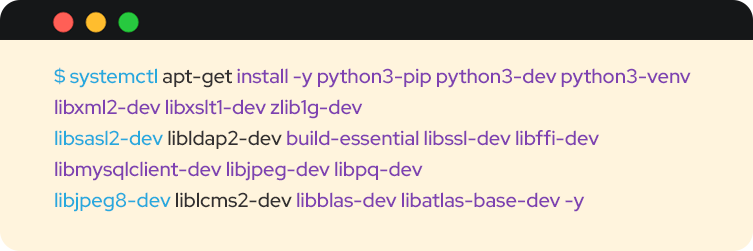
Step 2. Install Python and Necessary Tools:
Before you begin installing Odoo, you need to set up some stuff for PostgreSQL and Odoo itself.
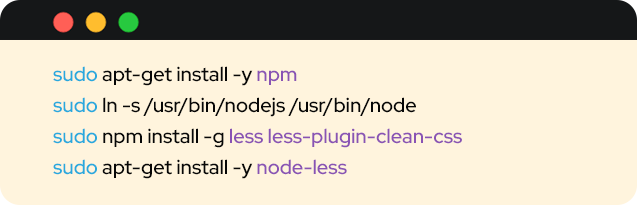
Step 3. Get NPM and CSS Tools:
After setting up the necessary components, you will install a tool for managing JavaScript packages:
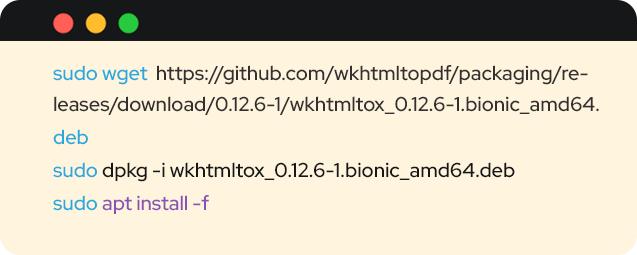
Step 4. Get Wkhtmltopdf:
Now, you will have to set up a tool called Wkhtmltopdf. It’s handy for changing web pages into PDF files. Follow these three commands one after the other:
Step 5. Install PostgreSQL:
You are now getting closer to installing Odoo. But before you do that, you will need to prepare the PostgreSQL service, which will store all of Odoo’s data.

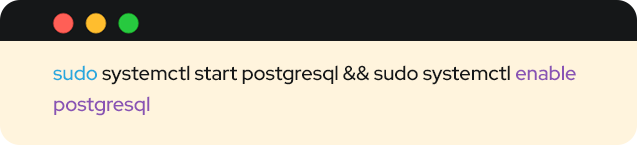
Once that’s done, start and enable the PostgreSQL service.
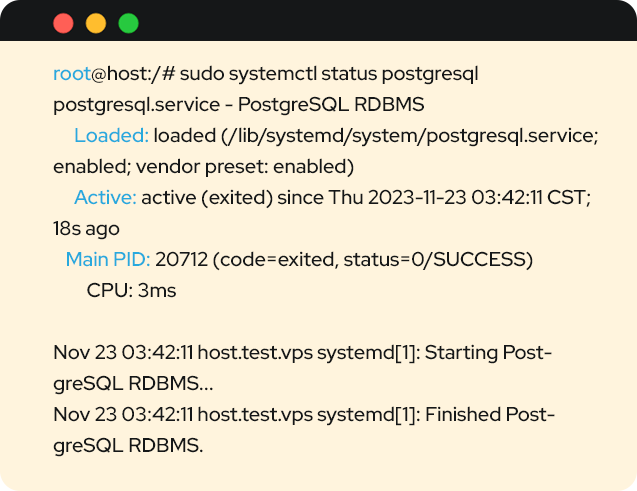
To see if everything’s running smoothly, use this command:

You should get this output below:
Step 6. Create Odoo ERP and PostgreSQL users:
Next, you will have to create users for Odoo ERP and PostgreSQL. And, to create the Odoo ERP user, you will need to run the command below:

Set a strong password for the Odoo user:
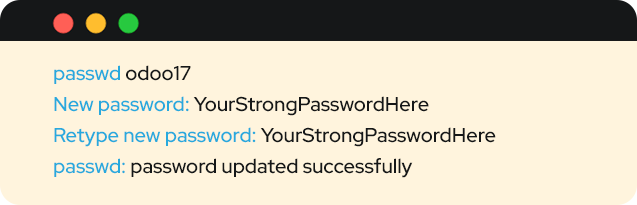
Ensure to replace YourStrongPasswordHere with a secure and strong password. And, to create a PostgreSQL user, you will need to execute:

Step 7. Install and the Configure Odoo ERP 17:
First, log in as an Odoo user and then clone the most updated version of Odoo into the /opt/ directory:
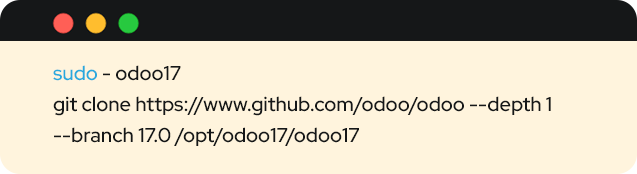
Then, you will need to activate the Python virtual environment and then start installing or setting up the Odoo ERP requirements.
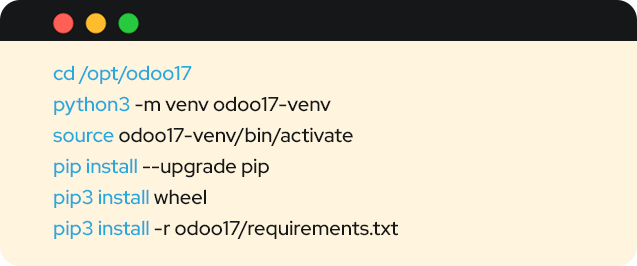
After completion, you will need to deactivate the environment and then create the Odoo log file and the Odoo add-on directories.
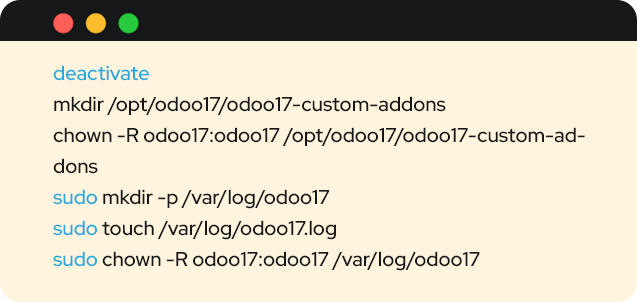
Step 8. Create Odoo 17 configuration file:
Now, let’s create the configuration file for Odoo.

Open the configuration file using the text editor you like best, and add these lines of code. Just make sure to replace “YourStrongPasswordHere” with a password that’s really strong.
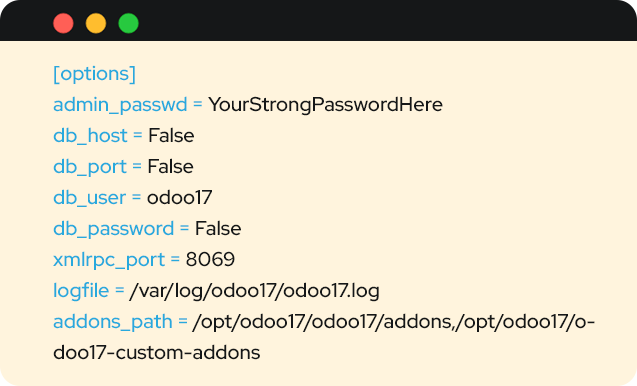
Save and then close the file.
Step 9. Create the Odoo systemd unit file:
To easily control our Odoo instance, you will need the Systemd service unit file. This will enable you to start, stop, and set Odoo to run on system boot. Execute the following command to create the Odoo systemd unit file:

Open that systemd unit file using any text editor you prefer and then paste these following lines:
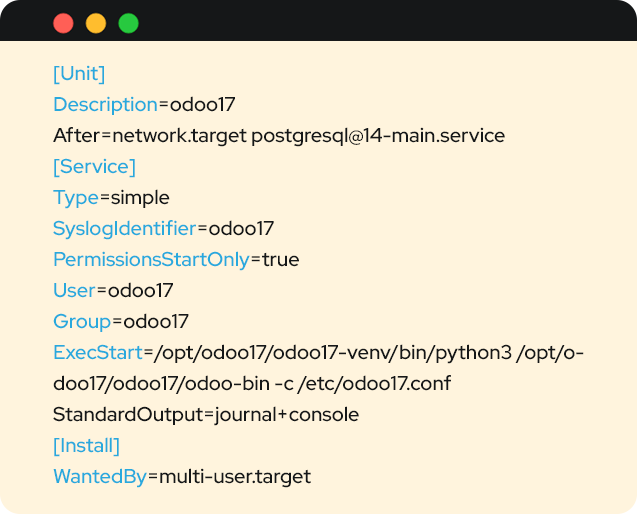
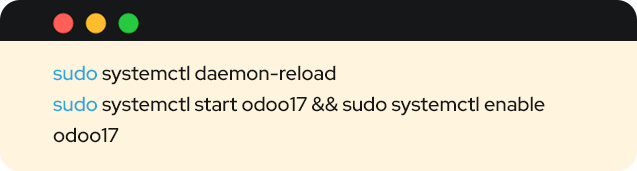
Reload the daemon and then start and then enable the Odoo ERP service:
To check the service’s status, execute:

You should receive the following output:
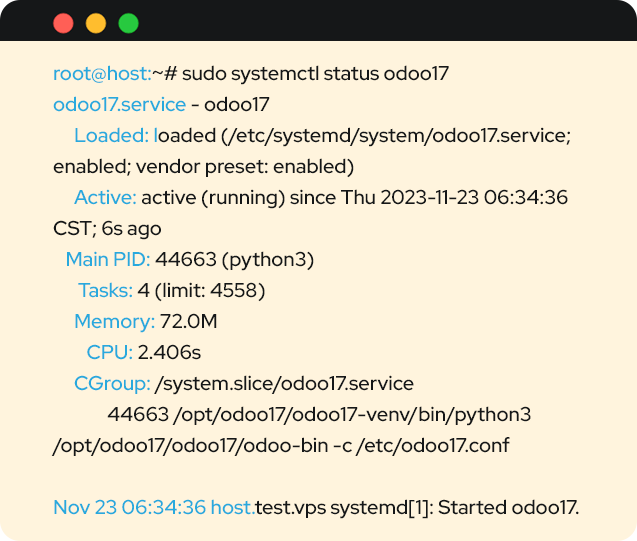
The service is now up and running. To access your Odoo website, use your server’s IP address in your web browser on the port 8069.
http://YourServerIPAddress:8069
So, you have successfully installed Odoo ERP 17 on Ubuntu 22.04. Now, you can customise your setup, install your required applications or modules, and input your business details to kickstart your operations using Odoo.
Also read about this –
“How to Install Odoo and Configure on Ubuntu”
Benefits of Odoo ERP Installation for Your Business
As an open-source ERP software, Odoo offers numerous advantages that position it as one of the best choices in the market. When selecting an ERP software, prioritise the platform and services that best suit your needs.
Wrapping Up
Alternatively, if you prefer a hassle-free setup, consider our managed Odoo ERP services. With us at Envertis, a certified Odoo gold partner in Australia, , you can simply request our support team to install Odoo 17 on Ubuntu 22.04 for you, and they will handle the rest. Our support team is available 24/7 to assist you not only with the installation but also with any additional requirements you may have. Give us a try, we are confident you won’t be disappointed.
Odoo provides a robust platform for managing diverse business functions, including CRM, accounting, project management, and more. By following the steps in this guide, you can successfully install Odoo 17 on your Ubuntu 22.04 system. For enhanced performance and reliability, consider deploying Odoo 17 now.

Get free consultation and let us know your project idea to turn it into an amazing digital product.

Se 506, 8 Help Street, Chatswood, NSW 2067
324 Queen Street, Brisbane, QLD 4000
171 Collins Street, Melbourne, VIC 3000