
Product variants refer to products with various related options, allowing businesses to offer clients diverse
Product variants refer to products with various related options, allowing businesses to offer clients diverse versions of the same product. Odoo ERP provides a dedicated feature for efficiently handling these variations. Product variants enable the inclusion of unique attributes such as size, materials, and color at either the product template level, encompassing all attributes and variants, or at the variant level for individual distinctions. You can create these variants manually or bring them in from elsewhere.
To start using product variants, turn on this feature in Website ‣ Configuration ‣ Settings, specifically in the Shop – Products section. This allows you to easily handle and showcase the diverse options within your product range.
Key advantages of incorporating product variations on a sales platform include:
Configuring Features of Product Variants:
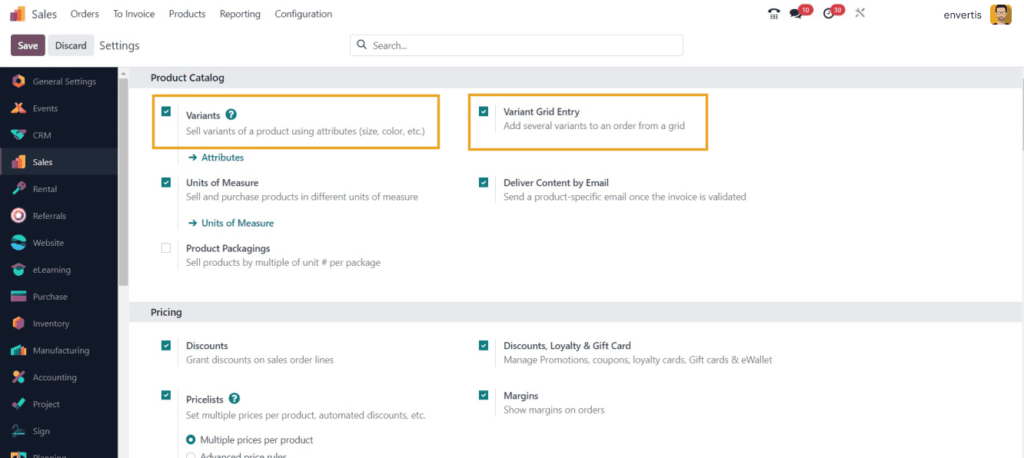
If you want to create a product with different options, like different colors or sizes, you need to follow these steps:
In the window that appears, you’ll see all the different versions of your product neatly organised.
But, before you create a product with multiple options, you need to set up some details. Here’s what you do:
That’s it! Now you can create a product with various options easily. And, once these features are activated, you will need to save the changes in the configuration.
Settings Attributes:
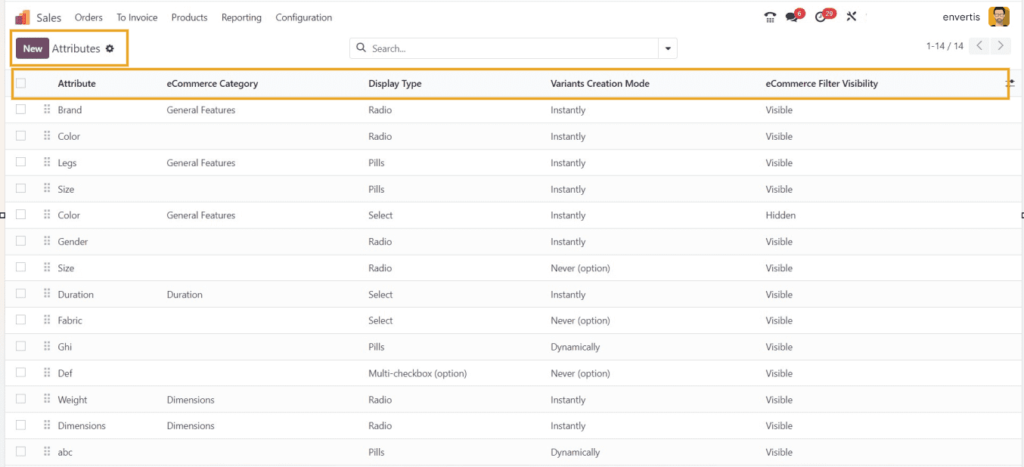
A product’s qualities are like its features, such as color, size, brand, material, and more. You can customise these features for the products you have in your sales inventory.
To do this, you have two ways:
Either way, you’ll end up on the “Attributes” dashboard, where you can tweak the features of your products.
Now, you will get to see all the features (attributes) generated in Odoo ERP. For each attribute, you can see its name, “eCommerce Category,” “Display Type,” “Variation Creation Mode,” and “eCommerce Filter Visibility.” If you need more details, you can add extra custom information.
To make a new attribute, click the “New” button in the top left corner.
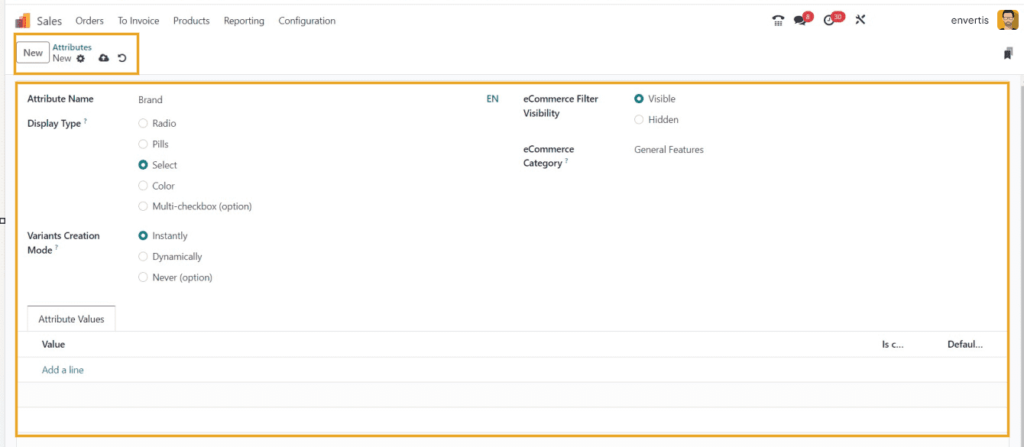
When creating a new attribute, follow these steps:
In the “Attribute Value” Section:
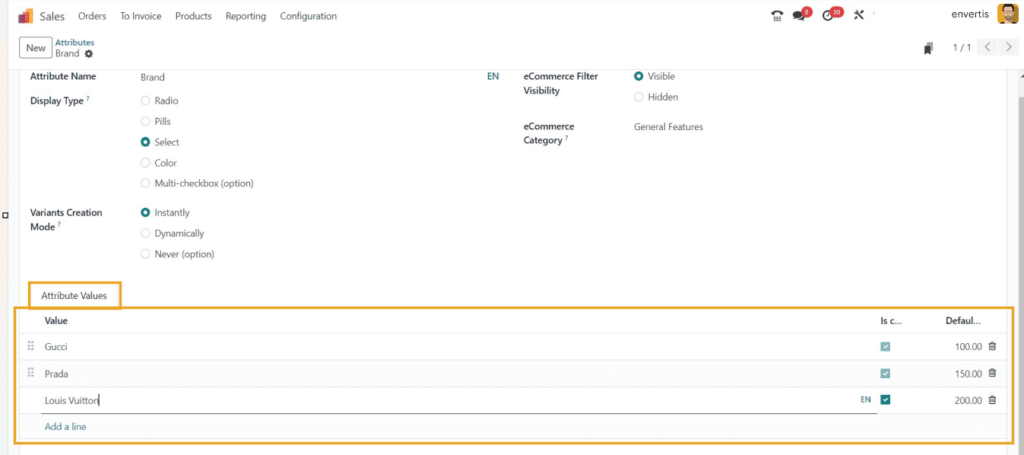
Now, you have created a brand characteristic in the “Attribute Value” section and added some brand names. This characteristic can now be used for future applications. Users can make different attributes using the same method.
Configuring Product Variants:
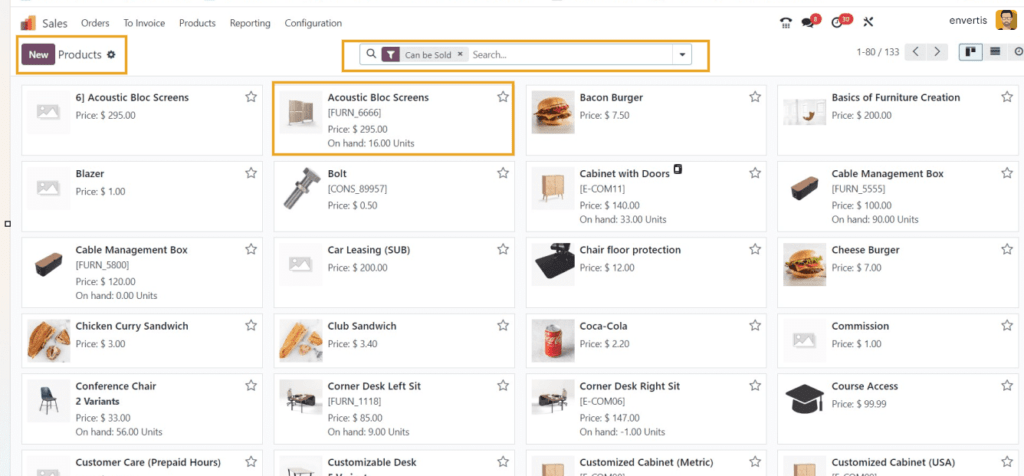
When setting up product variations, go to the “Products” menu. In the product category window, you can see details like Product Name, Reference Number, Sales Price, Quantity on Hand, and Number of Variables. Use the search bar to find specific products. Clicking on a product’s card opens its form view, allowing you to update and modify product details.
Creating a New Product:
To create a new product, click the “New” button. Enter the product name, and use the star icon to add it to your favorites. You can specify whether the product can be sold, purchased, expensed, used for recurring purposes, or rented. Options like “Can be sold,” “Can be Purchased,” “Can be Expensed,” “Recurring,” and “Can be Rented” determine the product’s usage.
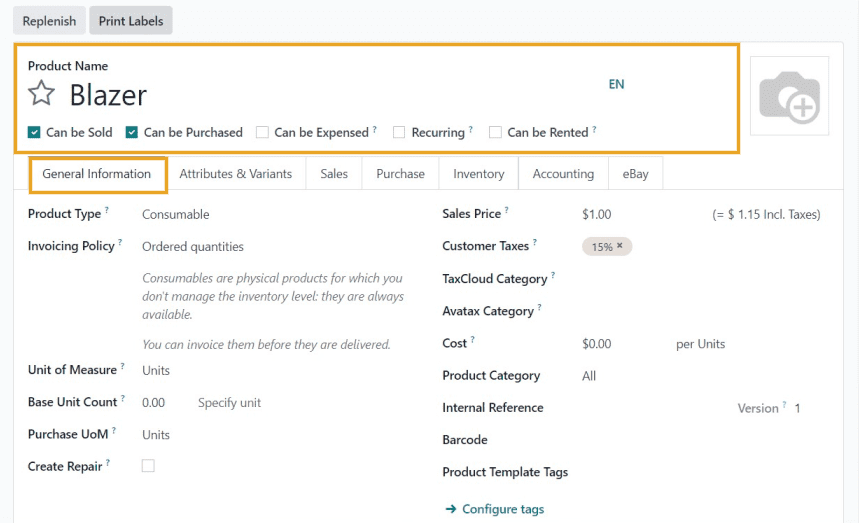
Creating Attributes & Variants:
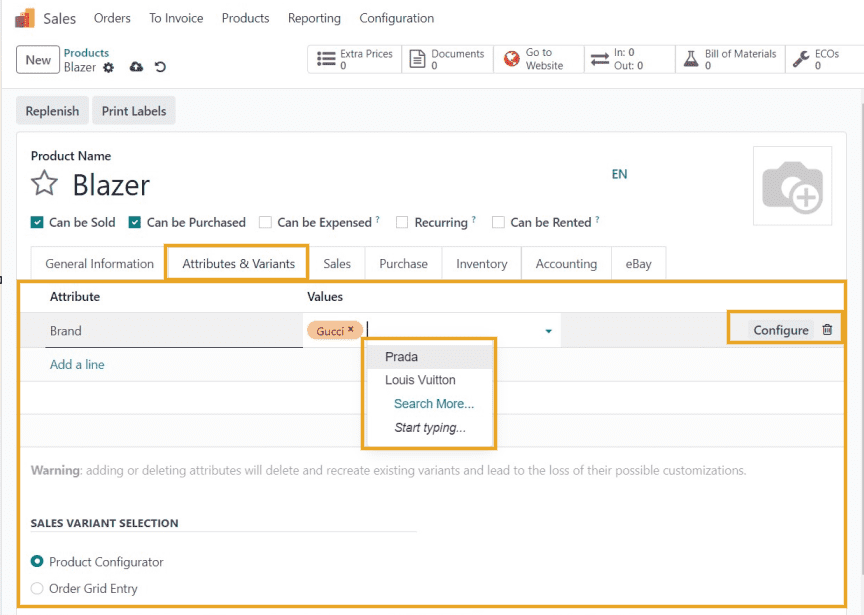
To make different product variations, use the “Attributes & Variants” tab in the product configuration form.
To add a new product version, click “Add a line,” select the attribute (like Brand) and its values from the drop-down list. Customise attributes using the “Configure” button. In Odoo 17, set the display type for variant selection in “Sales Variant Selection.” Save using the icon at the top. View variants in the sales page via the “Go to Website” tab. In the Sales Module, find stored variants under “Product Variants” in the “Products” menu. The dashboard displays details like Internal Reference, Name, Website, Variant Value, Sales Price, Cost, On-hand, and Forecasted Unit. Modify individual variant details by clicking on the variant. Each variation can have unique configurations.
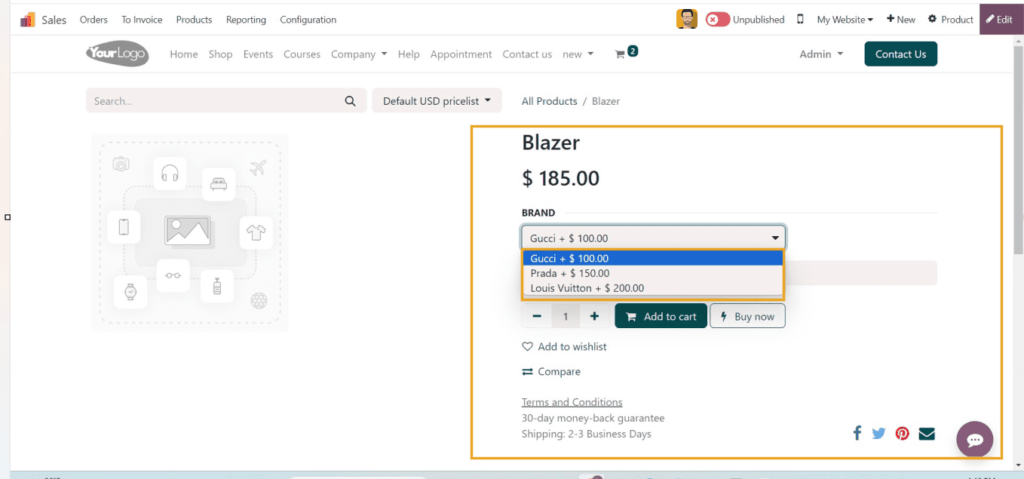
Easily adjust product details in Odoo ERP 17 to match inventory updates, with a focus on efficiently handling and customising product variants, including size and color options at the template or variant level.
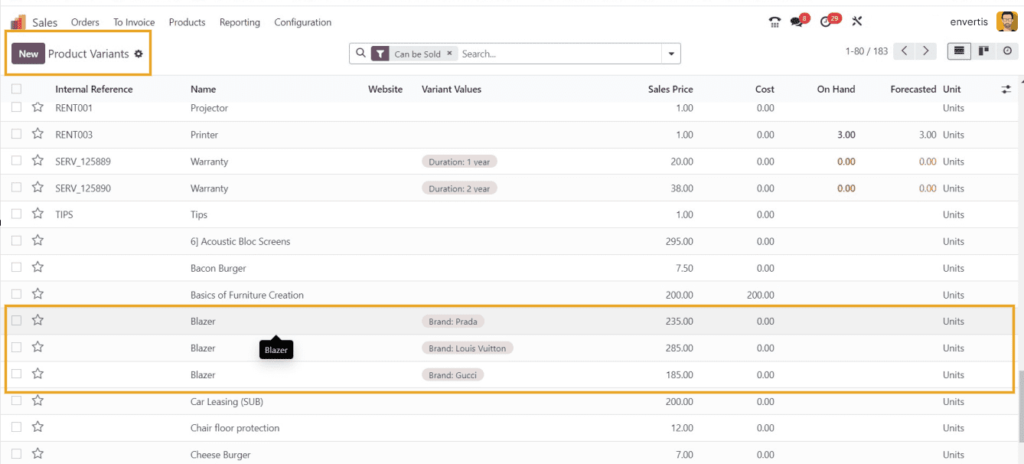
Effortlessly navigate your database’s Product Variables through our dashboard, offering insights into Internal Reference, Name, Website, Variant Value, Sales Price, Cost, On-hand, and Forecasted Unit. Easily configure settings for specific product variations by clicking on the desired variant column, opening a detailed form view below.
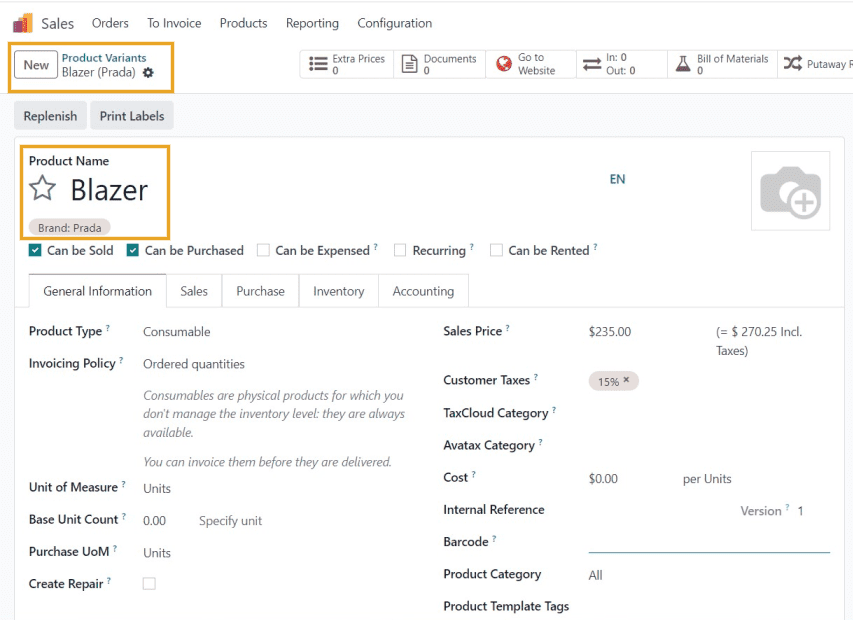
Effectively manage Product Variants with Odoo 17 Sales App. Tailor individual specifications, including Price, Inventory, Accounting, Purchase, and more, for each variation, allowing unique configurations for every variant.
You can get in touch with us at Envertis to streamline your product variants using the new and advanced Odoo 17 Sales app. We have certified Odoo consultants to meet your ERP requirements.
Get free consultation and let us know your project idea to turn it into an amazing digital product.

Se 506, 8 Help Street, Chatswood, NSW 2067
324 Queen Street, Brisbane, QLD 4000
171 Collins Street, Melbourne, VIC 3000